Edit Tech Packs
in Illustrator.
Stay in Flow.
You already design in Illustrator. Now edit AI-generated flat sketches, BOMs, and annotations without switching tools — and sync updates directly to your factory.
Why Designers Use It
You already know Illustrator. Now use it to edit tech packs without learning new software.
Your Tools, Your Way
Use Illustrator's pen, type, and bezier tools on AI-generated flat sketches. Edit with the precision you're used to.
Sync Without Re-exporting
Changes push back to your tech pack automatically. No more emailing updated files to your factory.
Everything in One Workspace
Browse all your tech packs from the sidebar. Switch between styles without leaving Illustrator.
How It Works
From install to factory-ready in five steps.
Install the Plugin
Install AI Tech Packs from Adobe Exchange.
Log In
Sign in with your AI Tech Packs account to sync everything.
Browse Tech Packs
See all your generated tech packs in the sidebar panel.
Edit with Pro Tools
Use Illustrator's full tooling on flat sketches and annotations.
Sync to Factory
Push changes back to your production-ready tech pack.
See It in Action
A focused panel for production-ready tech packs.
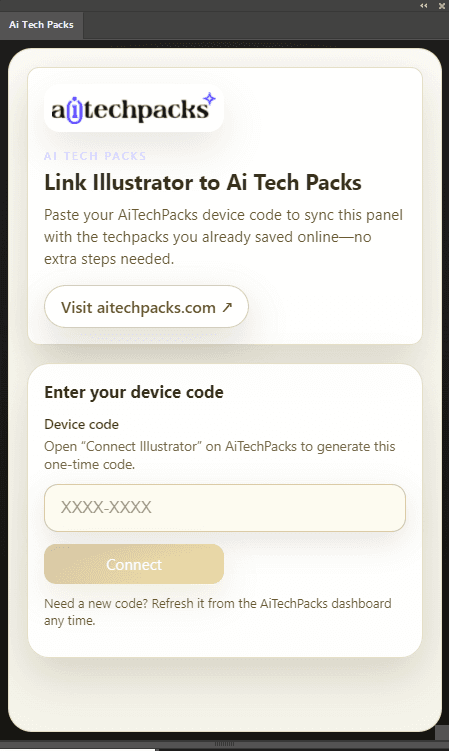
View all tech packs in Illustrator
Browse every generated tech pack without leaving Illustrator's workspace.
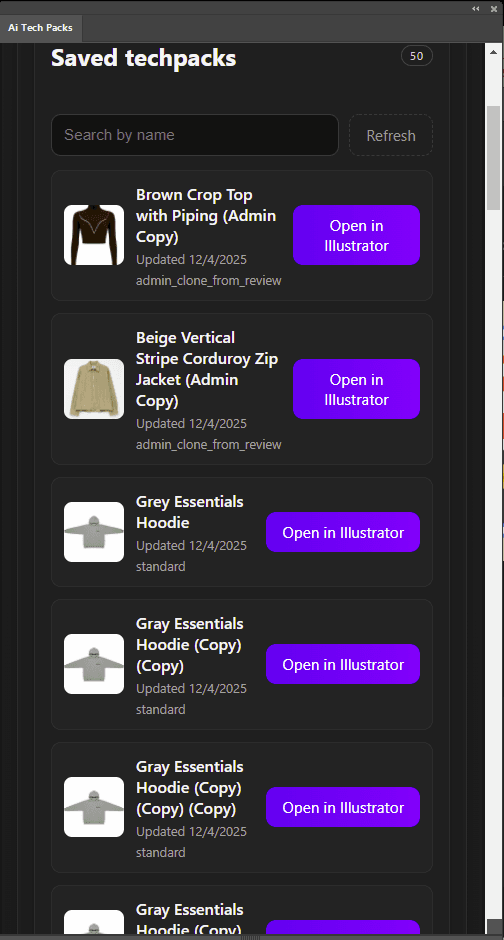
One click to start editing
Open a tech pack directly from the plugin and begin iterating instantly.
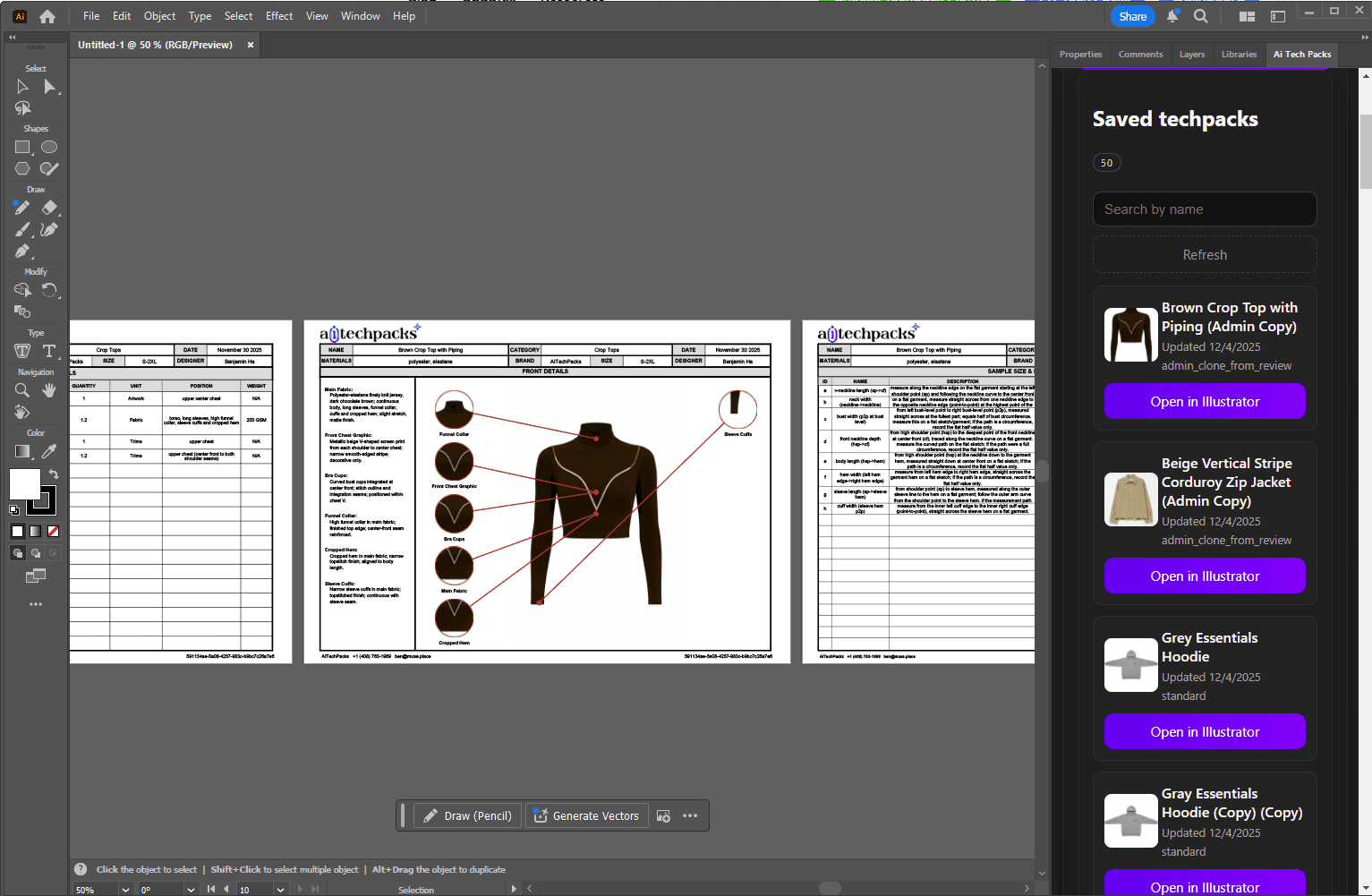
Customize with Illustrator's power
Use pen, type, and layout tools to refine any detail, then sync updates back.
Install in Minutes
Follow these steps to get the plugin running. Reach out if you need help.
Open AI Tech Packs on Adobe Exchange
Use the official Adobe Exchange listing to install the latest plugin for Illustrator.
The listing handles the Creative Cloud installation flow.
Install through Creative Cloud
Click Get or Install on Adobe Exchange and follow the Creative Cloud prompts.
Make sure you are signed in to the same Adobe account you use with Illustrator.
Restart Illustrator
Fully quit Illustrator (⌘+Q / Alt+F4) and relaunch so the extension registers.
Open from Window → Extensions
Navigate to Window → Extensions → AI Tech Packs. Sign in to sync your tech packs.
Need help? Email info@aitechpacks.com for video instructions.
Included with Designer
The Adobe Illustrator plugin is part of the Designer plan, along with batch techpack generation, Factory Share links, and MAX mode for premium AI image generation.
Designer Plan Includes:
Need Help Installing?
Our team can hop on during Adobe Exchange installs or send video walkthroughs. Mention your OS, Illustrator version, and current blockers.
Ready to edit in Illustrator?
Install the plugin from Adobe Exchange and start editing AI-generated tech packs with the tools you already know.
Install from Adobe Exchange