

The short answer
Do you need to switch from Excel and Illustrator?
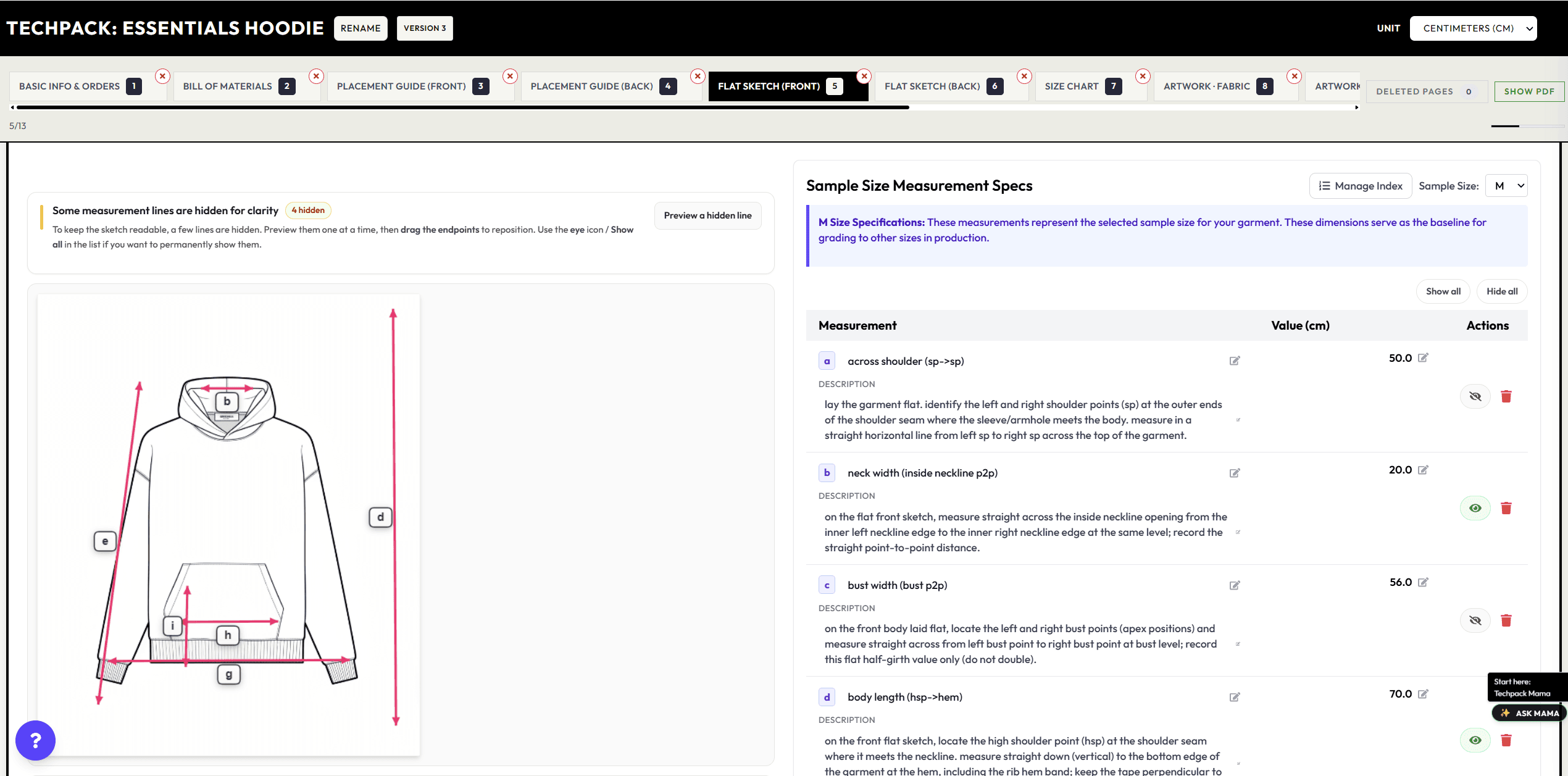
If you use Excel and Illustrator, you probably have a flat in one file and measurements in another. Change a sleeve or a pocket and you have to update both, then make a new PDF for the factory. That repeated setup is what we built AI Tech Packs to help with. Upload a garment photo or sketch, get a draft, and edit the details in one place.
You can still use Illustrator for drawing. And you still need to check the measurements, fabrics, construction, and fit. The question is whether starting from a draft makes your next tech pack easier to finish.
You can edit a free draft before deciding whether to pay for downloads.
What changes
Excel + Illustrator vs AI Tech Packs
Here’s what the work looks like in each. Think about the parts you repeat for every style, and the details you would still need to check yourself.
Swipe the table to compare columns →
| Task | Excel + Illustrator | AI Tech Packs | What you check |
|---|---|---|---|
| Original design work | Draw and edit vector artwork in Illustrator. | Start from a design image, flat, or garment photo. Keep Illustrator for drawing and refining your original artwork. | The design, artwork, and details you want to make. |
| Flat sketches | Draw or redraw flats in Illustrator and carry changes into the specification. | Generate a draft flat from your image, then check the details. | Silhouette, construction lines, and garment details. |
| POMs and size charts | Build measurement tables in Excel and check them against the flat. | Generate measurement tables you can edit for your sizes. | Base measurements, grading, tolerances, fit, and sampling. |
| Materials and components | Enter BOM rows manually and check that codes and callouts match the design file. | Get a draft bill of materials, then fill in the fabrics and trims you will use. | Composition, supplier details, consumption, costing, and compliance. |
| Revisions | Coordinate Illustrator files, spreadsheets, exported PDFs, and email attachments. | Edit the saved tech pack, then export it or share the updated version. | The approved version and which copy the factory is using. |
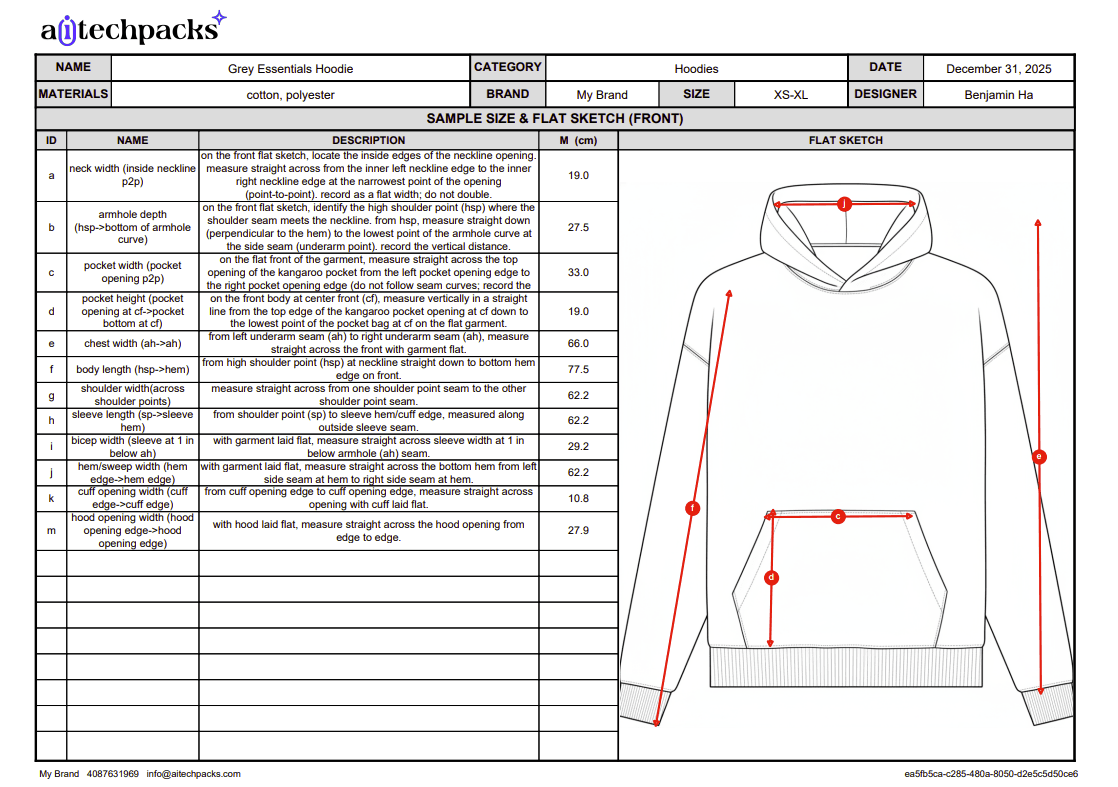
| Sending files to a factory | Send a PDF or spreadsheet and make clear which version to use. | Download PDF or Excel with a Tech Pack membership or an individual pack purchase. Tech Pack members can also send Factory Share links. | Factory questions, feasibility, sampling feedback, and production decisions. |
| Multiple styles | Copy the last pack and rebuild the same structure style by style. | Tech Pack members can queue up to 10 styles in one batch, then review each result. | Style-by-style review before anything reaches a factory. |
| Time spent | Start with blank or copied files and repeat setup, formatting, and cross-checking. | Start with a generated draft. How much you need to change depends on the garment and the image you give it. | The time it takes to check and correct your own styles. |
See how each part works: generation, editing, Excel export, and Factory Share. Check the pricing page for current purchase terms.
Inside a tech pack
From draft to factory
The first image shows where you edit the pack. The second shows a page your factory could receive. Check the pack before you download the PDF or Excel file, or send a share link.
01
Upload your design
Use a garment photo, sketch, or flat and add your design notes.
02
Generate a draft
Get drawings, measurement tables, materials, and construction notes to work from.
03
Check the details
Check the measurements, grading, fabrics, trims, artwork, and construction.
04
Send it to your factory
Download a PDF or Excel file. Tech Pack members can also send a Factory Share link.
When to keep your current tools
Keep Excel + Illustrator when
Your templates work, your factory knows them, and keeping the files updated is manageable. There’s no need to change everything just to use AI. If you rely on custom formulas or detailed vector artwork, keep those tools in the process.
Test AI Tech Packs when
You spend a lot of time setting up packs and copying information between files. Try a garment you’ve already made. Compare the draft with your approved pack: what did it get right, what needs fixing, and do the exported files work for your factory?
Ask your factory which files it needs. An Excel export gives you editable tables, but check your own templates and formulas before assuming you can swap files directly.
Plans and downloads
- Just need one tech pack?
- A single tech pack starts at $20. That purchase includes PDF and Excel downloads for that pack. It’s a way to try one style before choosing a membership. Batch generation and Factory Share need a Tech Pack membership.
- Flat Sketch membership
- $75 per seat monthly, or $720 per seat billed yearly. Choose this for front and back flat sketches and editable SVG files. To download a tech pack, you’ll need to buy that pack or choose the Tech Pack membership.
- Tech Pack membership
- $150 per seat monthly, or $1440 per seat billed yearly. Choose this for tech packs, PDF and Excel downloads, flat sketches, collections, batches of up to 10 styles, and Factory Share links. Each person needs a seat, and unlimited generation is subject to fair use.
Prices are in USD. Check current pricing and purchase terms for credit options, fair use, and larger teams. Include the time you spend checking and correcting each pack when you compare costs.
Before you send it to a factory
A photo won’t tell you the exact measurements, what’s inside a seam, or how a fabric will behave. Add those details from your fit standards, patterns, samples, and suppliers. Before you send the pack:
- Check the front and back flats, seams, closures, and artwork against your design.
- Check each point of measure, the units, base size, grading, and tolerances.
- Fill in the bill of materials with the fabrics, trims, suppliers, and colors you’ve chosen. Add the construction instructions.
- Open the PDF or Excel file and check for missing information.
- Make sure the factory has the right version. Answer its questions and approve the sample before production.
Start with one style and see how much work it takes to get the pack right. Once you’re happy with that result, try it on the rest of the collection.
Try it yourself
Try it with a garment you know.
Upload a photo or sketch of a style you’ve already worked on. You’ll know what the details should look like, so you can judge the draft and see what needs changing.


